
Tu hijo te entrega su móvil desbloqueado, sin nada que ocultar. Pero, ¿qué pasa con las 23 horas al día en las que no estás mirando por encima de su hombro? Si alguna vez te has preguntado si tu red doméstica guarda un registro de los sitios web que visitan tus hijos, estás planteando exactamente la pregunta correcta. Si alguna vez te has preguntado: “¿Qué páginas se visitan en mi red Wi-Fi?”, estás en el lugar adecuado.
Este artículo está dirigido a los padres que buscan respuestas reales, no solo palabras de tranquilidad. Te explicaremos qué datos registra realmente tu router Wi-Fi, cómo consultar el historial de conexión Wi-Fi y por qué una aplicación específica de control parental como Parentaler te ofrece una visión mucho más clara del mundo digital de tu hijo.
Cómo consultar el historial de navegación a través de Wi-Fi
Qué información puede mostrar tu red Wi-Fi
Tu router doméstico registra constantemente la actividad de la red. Dependiendo del modelo y de la configuración, puede registrar las direcciones IP y los nombres de dominio de los sitios web a los que te conectas, las marcas de tiempo de esas conexiones y qué dispositivos las han realizado.
Es posible utilizar el router como visor del historial de Wi-Fi, pero para ello hay que iniciar sesión en el panel de administración del router (normalmente a través de un navegador en la dirección 192.168.1.1 o similar), acceder a la sección de registros y saber qué datos estás consultando. La interfaz varía mucho según la marca, y los datos suelen ser densos y técnicos.
Si encuentras los registros de actividad, verás datos a nivel de dominio: algo como “google.com” o “youtube.com”, pero no los vídeos concretos que se han visto ni las búsquedas que se han realizado.
Lo que la supervisión de redes Wi-Fi no puede revelar
Aquí es donde el seguimiento basado en el router se topa con un gran obstáculo. Tu router solo ve el destino, no el recorrido. No puede mostrarte:
- Las páginas o el contenido exactos que se han visitado dentro de un sitio web
- Mensajes enviados o recibidos en redes sociales o aplicaciones de mensajería
- Términos de búsqueda que ha introducido tu hijo
- Actividad en conexiones cifradas (HTTPS), que actualmente es el estándar para casi todos los sitios web
En resumen, si consultas el historial de Wi-Fi a través de tu router, lo único que averiguas es eso se visitó un lugar, no ¿qué pasó allí?. Para un padre o una madre que intenta averiguar si su hijo está a salvo en Internet, eso no es suficiente.
Cómo Consultar el historial de Wi-Fi y ver qué páginas se visitan en mi red Wi-Fi
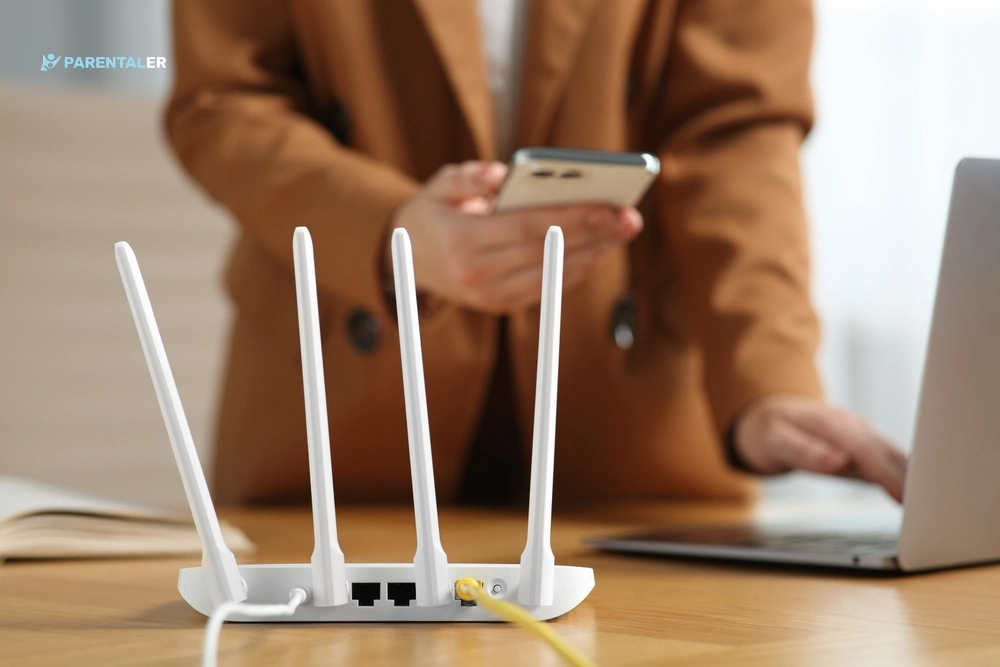
Revisión de los registros de actividad del router
Para consultar el historial de Wi-Fi directamente desde tu router:
- Abre un navegador y escribe la dirección IP de tu router (normalmente 192.168.1.1 o 192.168.0.1)
- Inicia sesión con tus credenciales de administrador (que suelen aparecer impresas en el propio router)
- Busca una sección titulada “Registros”, “Actividad” o “Monitor de tráfico”.”
- Filtra por el dispositivo que utiliza tu hijo
Ten en cuenta que muchos routers no registran estos datos de forma predeterminada y que, a menudo, los registros se borran al reiniciar el dispositivo. Este método sirve para consultar rápidamente el historial de Wi-Fi, pero no te proporcionará una visión continua y fiable.
Ajustes de control parental integrados
Algunos routers y proveedores de servicios de Internet cuentan con herramientas de control parental, como filtros de contenido, horarios de uso y otras funciones. Constituyen una buena primera línea de defensa y merece la pena configurarlas si aún no lo has hecho.
¿El inconveniente? Solo funcionan cuando tu hijo está conectado a la red doméstica. En cuanto utilice datos móviles, esté en casa de un amigo o se conecte a la red Wi-Fi del colegio, el historial de control de tu red Wi-Fi deja de ser relevante.


Por qué la supervisión de la red Wi-Fi no es suficiente para los padres
Limitaciones del seguimiento basado en routers
Cuando compruebas el historial de Wi-Fi para ver qué páginas visitan los usuarios a través de tu router, solo obtienes una visión parcial. Esto es lo que se te escapa:
Tráfico cifrado: Los sitios HTTPS (que son prácticamente todos) ocultan el contenido específico a tu router. Este ve el dominio, pero no los detalles.
Datos móviles: En cuanto tu hijo desactiva el wifi, tu router deja de detectar nada. Con solo pulsar un botón, toda su actividad te resulta invisible.
Aplicaciones, no navegadores: La mayor parte de lo que hacen hoy en día los jóvenes en Internet tiene lugar dentro de aplicaciones: Instagram, Snapchat, TikTok, Discord. Estas no aparecen de forma significativa en los registros del router.
Sin contexto: Aunque un dominio aparezca en los registros, no hay forma de saber si se trataba de una búsqueda para hacer los deberes, un error de dos segundos o un patrón que se prolongó durante horas.
Así que, si sigues preguntándote: “¿Cómo puedo ver qué páginas se visitan en mi red Wi-Fi?”, sigue leyendo: la respuesta está más abajo.
Cómo las aplicaciones de control parental ofrecen una mayor visibilidad

Una aplicación de control parental funciona de forma diferente. En lugar de supervisar la red, supervisa el dispositivo, lo que significa que sigue a tu hijo allá donde vaya con su móvil, no solo cuando está en casa.
Las aplicaciones de control parental como Parentaler están diseñadas precisamente para cubrir esta necesidad. Parentaler te ofrece una visión directa de la actividad en el móvil de tu hijo: no solo las redes Wi-Fi, sino una visión completa.
Historial del sitio web y actividad de navegación
Parentaler registra el historial de navegación real del dispositivo de tu hijo, con la fecha y la hora, y el tiempo que ha pasado en cada página web. No hace falta iniciar sesión en el router ni realizar comprobaciones técnicas del historial de Wi-Fi; todo está disponible en un panel de control claro y fácil de leer.
También puedes ver a qué redes Wi-Fi se conecta tu hijo, una función muy útil cuando quieres saber si se está conectando a redes desconocidas o poco seguras fuera de casa. Esto va mucho más allá de lo que puede ofrecer cualquier visor estándar del historial de Wi-Fi.
Además, puedes ver a qué redes se conectan con más frecuencia, lo que te ofrece una visión completa de sus intereses y preocupaciones actuales. Por otra parte, Parentaler te muestra información detallada sobre las conexiones: nombre de la red, hora de conexión y duración.
Tiempo frente a la pantalla y uso de aplicaciones
Parentaler no es solo un visor del historial de Wi-Fi. Además de los sitios web, te muestra cuánto tiempo pasa tu hijo en cada aplicación, qué aplicaciones tiene instaladas en su dispositivo y cuándo está más activo en Internet. Puedes establecer límites y horarios directamente desde tu panel de control, sin necesidad de acceder al router.
Una de las funciones más útiles de Parentaler para los padres de adolescentes es la supervisión de Snapchat. Snapchat está diseñado para ser efímero (los mensajes desaparecen, las historias se borran), pero Parentaler captura lo que se intercambia en tiempo real, incluidos los mensajes y los archivos multimedia compartidos, antes de que desaparezcan. También supervisa otras aplicaciones populares como WhatsApp, Instagram, Telegram, Facebook Messenger, Viber, Tinder y muchas más. Al combinar esto con el historial de navegación y la supervisión de la red, dejarás de hacer conjeturas y empezarás a saber a ciencia cierta.
Alertas de seguridad en Internet
Parentaler no solo revisa el historial de Wi-Fi, sino que te avisa cuando tu hijo acceda a determinadas categorías de contenido o cuando aparezcan palabras clave específicas en su actividad. Puedes recibir notificaciones cuando algo requiera tu atención inmediata, en lugar de tener que revisar los registros manualmente cada día. Puedes bloquear redes sospechosas directamente desde el panel de control con solo unos clics.
Esta es la diferencia entre el registro pasivo y el apoyo activo a la crianza de los hijos. Los registros del router requieren que los busques tú mismo. Parentaler te ofrece información relevante.
Conclusión
Sí, tu router Wi-Fi guarda cierto historial de la actividad de la red, y saber cómo realizar una comprobación básica de este historial puede ser un buen punto de partida. Pero para los padres que buscan una verdadera tranquilidad, los registros del router son una herramienta poco eficaz. Se pierden demasiados datos: la actividad de las aplicaciones, los datos móviles, el contenido cifrado y el contexto que realmente importa.
Una aplicación específica de control parental como Parentaler cubre esas carencias. Funciona en todas las redes, supervisa el propio dispositivo y te ofrece información clara y útil que te ayuda a mantener mejores conversaciones con tus hijos, no solo a obtener mejores registros.
El objetivo no es la vigilancia. Se trata de saber cuándo intervenir y cuándo no entrometerse.