Amikor valaki, akit szeretsz, nem válaszol, az agyad gyorsan a legrosszabb helyekre megy. Beragadtak valahol? Lemerült a telefonja? Biztonságban vannak? Ha Ön szülő, ez az aggodalom még jobban megüti a fejét - hiszen a gyerekek nem mindig gondolnak arra, hogy megosszák a terveket, feltöltsék a készülékeket, vagy azonnal válaszoljanak.
A Google Maps segíthet, de csak a megfelelő helyzetekben. Ez az útmutató bemutatja a biztonságos, törvényes felhasználási módokat (engedéllyel), majd elmagyarázza, hogy miért lehet az Parentaler a legjobb megoldás a gyermekek folyamatos biztonsága érdekében.
Ha a Google Térkép segítségével próbálja ingyenesen nyomon követni a mobiltelefon helyét, kezdje az alábbi lehetőségekkel, amelyek a hozzájárulással és a beépített Google-eszközökkel működnek.
#1 A Google Maps helymegosztás használata (a legegyszerűbb lehetőség)

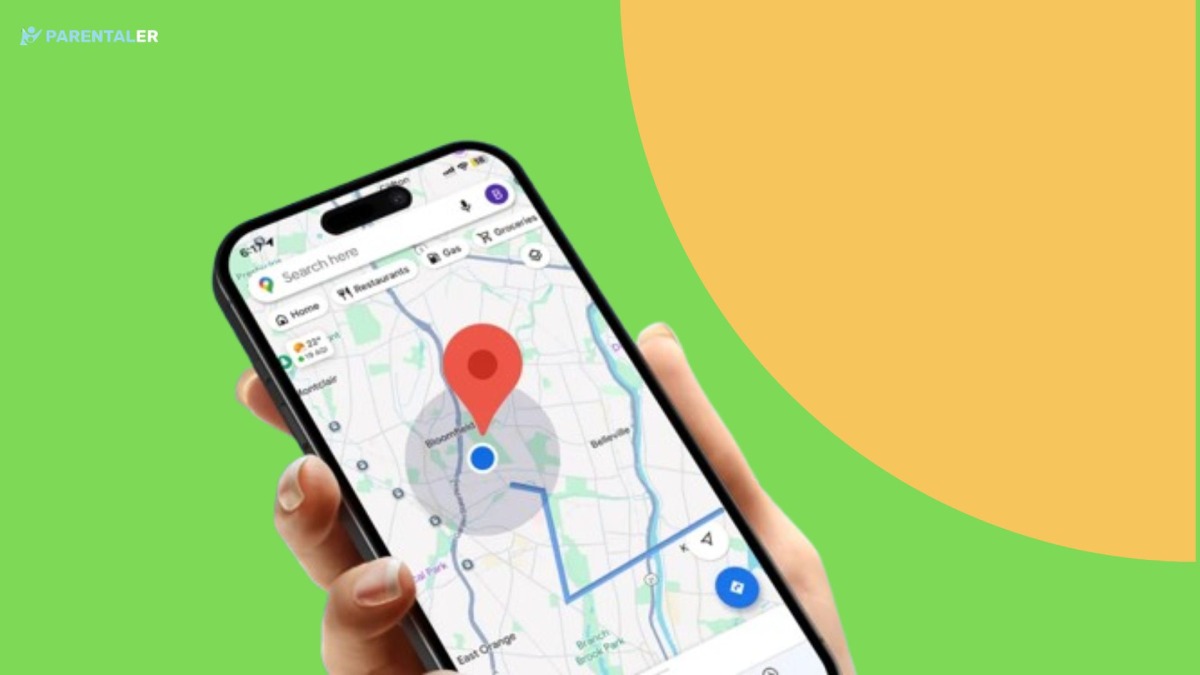
A legegyszerűbb módja az élőhely megosztásának a Google Térképen a Helymegosztás. Családok és barátok számára készült, és akkor működik jól, ha mindenki beleegyezik a használatába.
Így láthatja valaki tartózkodási helyét a Google Térképen a Helymegosztás segítségével:
- Nyissa meg a Google Térképet a gyermek telefonján.
- Koppintson a profil ikonra (jobbra fent).
- Koppintson a Helymegosztás lehetőségre.
- Koppintson a Hely megosztása lehetőségre.
- Válasszon egy időablakot (például 1 óra) vagy “Amíg ki nem kapcsolja”.”
- Válasszon ki egy kapcsolatot (Önt), és koppintson a Megosztás gombra.
Amint megosztják, látni fogja őket a térképén. A nevükre koppintva útbaigazítást is kaphatsz hozzájuk, ellenőrizheted az akkumulátor töltöttségi szintjét (néha látható), és megerősítheted, ha megérkeznek.
Ez a legtisztább módja annak, hogy megtaláljuk valakinek a helyét a Google Térképen, mivel átlátható és pontosan erre a célra készült.
#2 Útvonalat kapnak a megosztott kitűzőjükhöz (amikor elküldik)
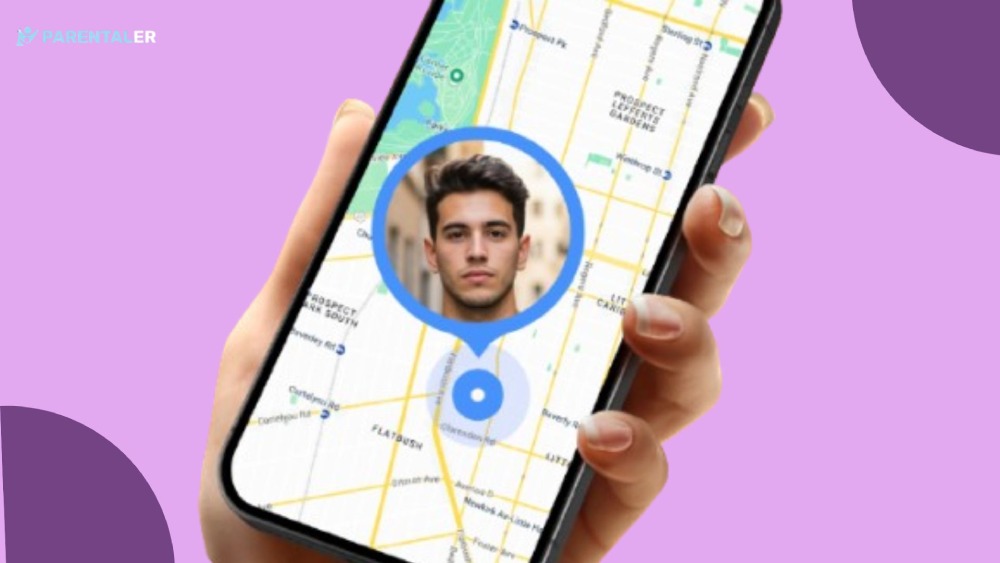
Előfordul, hogy gyermeke nem állítja be a Helymegosztást, de így is küldhet egy gyors “hol vagyok” kitűzőt.
Ezt megtehetik:
- Google Maps megnyitása
- Koppintson a kék pontra (a helyükre)
- Koppintson a Helymegosztás vagy a Helymeghatározás küldése lehetőségre.
- Küldje el SMS-ben vagy egy üzenetküldő alkalmazáson keresztül
Ez nem frissül folyamatosan, mint az élő megosztás, de hasznos, ha csak egy gyors bejelentkezésre van szüksége. Ez egy tiszteletteljes módja annak is, hogy megtalálj valakit a google maps-en anélkül, hogy nagy ügyet csinálnál belőle - különösen az idősebb gyerekeknél, akik egy kicsit nagyobb önállóságra vágynak.
#3 A Google készülékkeresőjének használata (elveszett Android telefon esetén)
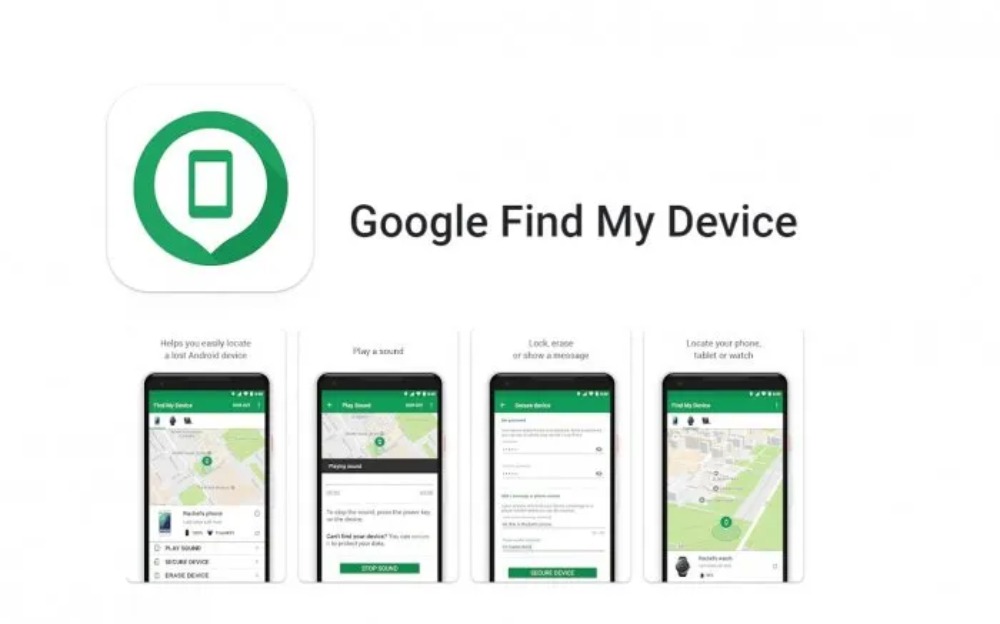
Ha a valódi probléma az, hogy “elvesztették a telefont” (vagy ellopták), a Google Find My Device (Készülékkeresés) segítségével megtalálhatja azt. Ez akkor működik, ha:
- A telefon be van jelentkezve egy Google-fiókba
- A hely engedélyezve van
- A készülék rendelkezik internettel (vagy a legutóbbi helymeghatározási előzményekkel).
Meglátogathatja a Google Find My Device (Google Find My Device) webhelyet, és megkeresheti a telefont, csengetésre vagy zárolásra késztetheti. A szülők számára ez egy praktikus eszköz - különösen akkor, ha a gyermeke könnyen elveszíti a dolgait.
Ez az egyik reálisabb módja annak is, hogy közvetve nyomon kövesse valaki tartózkodási helyét a Google Térképen, mivel a Find My Device a Google helymeghatározó szolgáltatásait használja, amelyek a Térkép-alapú eszközök mellett jelenhetnek meg.
#4 Google Maps idővonal ellenőrzése (csak saját fiók vagy közös családi eszköz esetén)
A Google Térképek idővonal (helytörténet) megmutatja, hogy hol járt egy eszköz - ha a Google-fiókban engedélyezve van a helytörténet. De van itt egy fontos vonal:
- Ez a saját számlájához megfelelő
- Vagy egy közös családi eszköz/számla, amelyet a gyermeke számára kezel.
- Nem azért, hogy titokban hozzáférjen valaki más privát fiókjához.
Ha családja egy kezelt Google-fiókot használ a gyermek eszközén, az Időrend segíthet az útvonalak megerősítésében (otthon → iskola → gyakorlat). Hasznos, ha kontextusra van szükséged, nem csak egy pontra a térképen.
Felelősségteljesen használva támogathatja a szülőket, akik a Google Maps mintáin próbálják megtalálni valakinek a tartózkodási helyét - például azt, hogy hová jár a gyermeke az iskola után - állandó bejelentkezések nélkül.
Ahol a Google Maps nem felel meg a szülőknek
A Google Maps működik, de nem teljes értékű szülői eszköznek készült. A való életben a szülők olyan problémákba ütköznek, mint például:
- A helymegosztás kikapcsolása
- Egy gyerek megint elfelejt osztozni
- A telefon egy barátjánál marad (így a “helyszín” nem a gyermek).
- Nincs riasztás, ha kockázatos helyekre lépnek
- Nincs egyszerű előzménynézet, amelyben napról napra megbízhatsz
Tehát igen, a Google Térképen láthatja valakinek a helyét. - de törékenynek tűnhet, amikor következetességre van szükséged.
Ez az a pont, ahol az Parentaler jobb hosszú távú megoldássá válik a szülők számára.
Miért az Parentaler a legjobb megoldás a folyamatos helymegfigyeléshez?
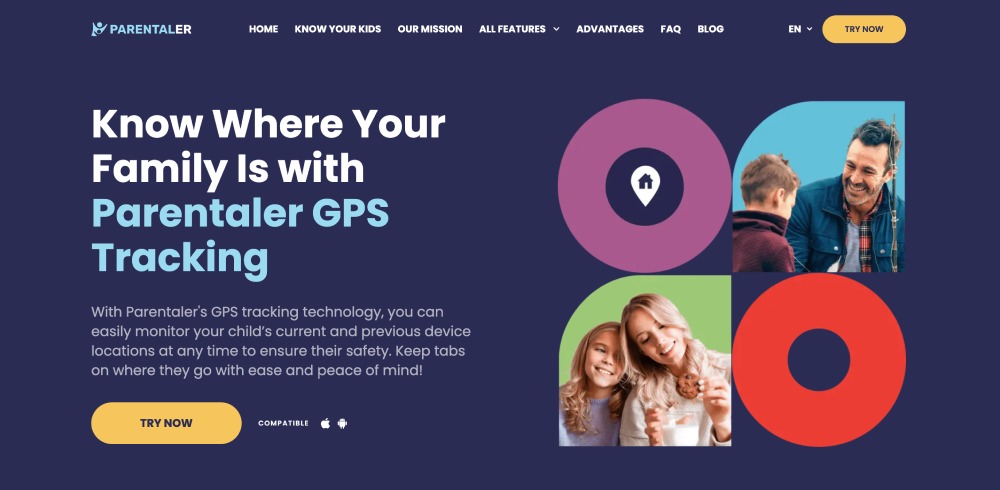
Parentaler olyan szülők számára készült, akik nyugodt, megbízható láthatóságot szeretnének - nem pedig az utolsó pillanatban történő kapkodást. Ahelyett, hogy arra hagyatkozna, hogy a gyermek emlékszik a kitűző megosztására, az Parentaler segít Önnek a család biztonságára épített biztonságos műszerfalon keresztül tájékozódni.
Az Parentaler segítségével:
- Helyszín megtekintése szülőbarát formátumban
- A helymeghatározási előzmények áttekintése (hasznos a rutinok és minták szempontjából)
- Tisztább képet kaphatsz, ha valami “nem stimmel”.”
- Csökkentse a stresszes “Hol vagy?” pillanatok számát.
Ha próbált már valakit a Google Térképen megtalálni egy feszült pillanatban, tudja, milyen gyorsan frusztrációba fordul. Az Parentaler célja, hogy ezt következetességgel helyettesítse - így nyugodtan ellenőrizheti, és eldöntheti, hogy be kell-e avatkoznia.
A szülőkkel való beszélgetés a helymegosztásról
A helymegfigyelés akkor működik a legjobban, ha gyermeke megérti a “miértet”. Próbáld ki az olyan nyelvezetet, mint:
- “Ez nem a bizalmatlanságról szól. Hanem a biztonságról.”
- “Ha valami baj történik, gyorsan meg kell találnom téged.”
- “Ahogy felelősséget mutatsz, idővel lazíthatunk rajta.”
Ez azért fontos, mert a cél nem az, hogy irányítsa a gyermeke életét. A cél az, hogy megvédjük őket, miközben megtanulják az önállóságot.
Ha a Google eszközeit használja a mobiltelefonok helyének követésére ingyenes Google Maps, fontolja meg egy családi szabály felállítását: a helymegosztás bekapcsolva marad az iskolai órák és kirándulások alatt, és csak akkor ellenőrzi, ha szükséges. Így megmarad a bizalom.


Gyors biztonsági ellenőrzőlista bármilyen helymeghatározó eszköz használata előtt
Mielőtt bárkit is követne, győződjön meg róla:
- Ön rendelkezik engedéllyel (vagy Ön a szülő/gondviselő, aki a kiskorú eszközét kezeli).
- Követi a helyi törvényeket és platformszabályokat
- A nyomkövetést a biztonság, nem a kémkedés érdekében használja.
- Védi a bejelentkezési adatokat, és nem osztja meg a hozzáférést másokkal.
A Google Maps és az Parentaler is segíthet, de csak akkor, ha etikusan használják.
Ha pedig az a célja, hogy nyomon kövesse valaki tartózkodási helyét a Google Maps-en, mert szorong egy kapcsolatban, vagy titokban szeretné ellenőrizni a partnerét, tartson szünetet. Ez a helyzet másfajta támogatást érdemel - mert a beleegyezés nélküli helymeghatározás gyorsan átlépheti a jogi és személyes határokat.
A legegyszerűbb “Google Maps + Parentaler” beállítás családok számára
Ha a legegyszerűbb, legkevésbé stresszes megközelítést szeretné:
- A Google Maps helymegosztás használata alapvető családi szokásként
- Használja az Parentaler-t a folyamatos láthatóság és a nyugalom érdekében.
- Tartsa nyitva a kommunikációt, hogy a gyermeke ne érezze magát csapdába ejtve.
Így a Google Maps továbbra is hasznos eszköz marad a mindennapokban, az Parentaler pedig a megbízható tartalék, ha több struktúrára van szüksége, mint amit a Maps nyújtani tud.
Ez gyakran a leggördülékenyebb módja annak, hogy a Google Maps-en megtaláljuk valakinek a tartózkodási helyét a normál életben - miközben még mindig van egy szülői szintű biztonsági háló.
Végső gondolatok: A biztonság felülmúlja a találgatásokat
A Google Maps nagyszerű kiindulópont lehet. Ismerős, egyszerű és ingyenes. Gyors bejelentkezésekhez működik. De a szülői munka ritkán marad “gyors”. A gyerekek elfelejtik. A tervek változnak. A telefonok lemerülnek. És ha aggódsz, nem akarsz beállításokat keresni.
Ha következetes, szülőközpontú helymegfigyelést szeretne, amely csökkenti a stresszt, és segít Önnek abban, hogy magabiztosan védje gyermekét, akkor az Parentaler a legjobb választás. Próbálja ki, állítsa be egyszer, és adja meg magának azt, amire minden szülőnek a legnagyobb szüksége van: tisztánlátást, amikor ez számít.